Blog
Game Vault on iOS — A Complete Player's Walkthrough
Games
- Why the App Beats the Browser
- Getting the App Downloaded
- First Launch and Setting Up Your Account
- Logging In After the First Time
- Turning On Two-Factor Authentication
- Managing Your Account Settings
- Finding and Playing Games
- Cashing Out Your Winnings
- What to Do When Login Isn't Working
- Keeping Your Account Secure
- A Few Tips to Make the Most of It
- Ready to Get Started?
For anyone still playing Game Vault on a desktop browser and who hasn't made the switch to the iOS app yet, the experience is genuinely worth trying. The touch controls feel natural, games load fast, and skipping the browser altogether makes things noticeably smoother. Whether the device is an older iPad or the latest iPhone, performance holds up well across the board.
This walkthrough covers everything: downloading the app, creating an account, logging in, and getting the most out of Game Vault on iOS.
Why the App Beats the Browser
There are a few things the iOS app does that a mobile browser simply can't match. First off, speed. Native apps don't carry the overhead of browsers, so games open quicker, and transitions feel snappier. Battery life is better, too, which matters if you're playing for extended stretches.
Push notifications are another big plus. If there's a limited-time bonus or a new game drop, you'll know about it right away, even if the app isn't open. It's easy to miss promotions when you only check occasionally through a browser.
The app also remembers your login. After that first sign-in, you're dropped straight into your account the next time you open it. No typing credentials over and over. And because it stores everything in Apple's secure keychain, your password isn't just floating around somewhere; it's protected properly.
Touch controls deserve a mention, too. Tapping and swiping to play feels way more intuitive than clicking around on a website. Some games are designed for mobile first. Once you've played that way, going back to a mouse feels clunky.
Getting the App Downloaded
Finding Game Vault in the App Store is painless. Open the App Store, it's the blue icon with a white shopping bag, and head to the Search tab at the bottom. Type in Game Vault and it should pop up quickly.
Just make sure you're grabbing the official app. Check the publisher name and look for a solid review count. There are fake or knock-off apps out there, so it's worth double-checking before you hit download. The real one will list Game Vault as the publisher and have plenty of verified reviews.
Hit the Get button, then authenticate with Face ID, Touch ID, or your Apple ID password when prompted. The download only takes a minute or so on a decent connection. If it cuts out partway through, just tap Get again, and it'll pick up where it left off rather than starting from scratch. Once it's done, you'll see the Game Vault icon sitting on your home screen.
First Launch and Setting Up Your Account
The first time you open the app, expect it to take a few extra seconds. It's doing some setup work; it only needs to be done once. After that, launches are noticeably faster.
New players will land on a signup screen. If you've already got a Game Vault account from the website, great — just log in with those same credentials. No need to start over. If you're brand new, tap Create Account and fill out the registration form.
For the email field, use one you actually check. This address serves as your login name and is the primary way to recover your account if something goes wrong. Don't use an old throwaway — it matters.
Pick a strong password. Something like GameVault#Play2024 works well — a mix of uppercase, lowercase, numbers, and a special character. Avoid anything obvious, like your name or a simple number sequence. It might feel like overkill, but accounts with weak passwords are the ones that get targeted.
You'll also pick a display username — this is what other players see, not your email. Have some fun with it. After that, confirm your password, accept the terms, fill in any remaining fields accurately, and submit. Your account is usually active right away.
Logging In After the First Time
Once your account is set up, logging in is fast. Open the app, enter the email you registered with, then your password. Passwords are case-sensitive, so if yours has capital letters, make sure they're in the right place. If you're not sure what you typed, tap the eye icon to reveal the field — it's easier than guessing.
There's usually a Remember Me option. Checking that means next time you open the app, it skips straight to your account dashboard. Handy for personal devices. On a shared phone or tablet, you should skip this one.
If login fails, the app will tell you why. Usually, it's a typo in the email or a wrong password. Go back, check carefully, and try again. If you've genuinely forgotten your password, use the Forgot Password link. It sends a reset link to your email and gets you back in within a few minutes.
Turning On Two-Factor Authentication
This step is optional but strongly worth doing. Two-factor authentication adds a second layer to your password; even if someone gets your credentials, they still can't get in without your phone.
After logging in, go to Account Settings and look under Security. Enable two-factor authentication and enter your mobile number. From that point on, every login will send a six-digit code to your phone via text. You enter that code, and you're in.
It adds thirty seconds to the login process. For an account that might have real money attached to it, that's a trade-off worth making.
Managing Your Account Settings
The settings section is more useful than it might seem at first glance. You can update personal info like your email, phone number, or address anytime things change. Keeping this current is important — especially the phone number, since two-factor authentication relies on it.
Password changes happen under Security. You'll need your current password first, then you can set a new one. Changing it every few months is a reasonable habit.
Responsible gaming tools are buried in here, too, but they're worth finding. You can set deposit, loss, and time limits for your sessions. These aren't just for people with problems; they're smart guardrails for anyone who wants to keep gaming enjoyable rather than stressful.
Notification preferences let you choose what alerts you get. Some players want to hear about every bonus and event. Others prefer minimal interruptions. Either way, it's easy to adjust.
The transaction history tab shows every deposit, withdrawal, bonus, and activity on your account. Making a habit of checking this regularly means you'll spot anything unusual quickly.
Finding and Playing Games
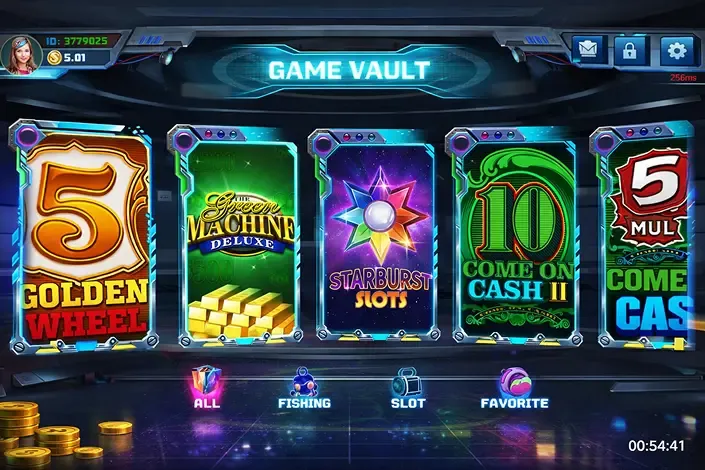
The main screen after login is where the game library lives. Games are organized by type, slots take up the biggest chunk, followed by table games, video poker, and a few specialty categories. You can browse by category or just use the search bar if you know what you're looking for.
Before you dive in, tap a game to read its description. It'll tell you the rules, payout structure, and odds. That context is actually useful; knowing how a game works before you start means fewer surprises.
There's usually a section spotlighting new arrivals. Worth exploring if you want something fresh. You can also bookmark favorites using the star or heart icon on each game; those get saved to their own section, so you're not hunting for them every time.
The game itself is smooth. Tap to select a game, and it opens full screen. Your credit balance shows at the top. Bet controls are near the bottom. Starting with smaller bets is a good idea until you're comfortable with how a particular game works. Wins get added to your balance automatically, and exiting mid-game is fine; your session state saves.
Cashing Out Your Winnings
When you're ready to withdraw, go to the banking or cash-out section in your account. Choose an amount you can usually withdraw, everything, a portion, or enter a custom number. Pick your withdrawal method, which will typically match whatever you used to deposit.
Confirm everything and submit. The app shows a confirmation and updates your transaction history. How long it takes to actually hit your account depends on the method. Digital wallets are usually quickest, sometimes within a day. Credit card withdrawals tend to take longer, often several business days. Bank transfers can be slower still. It's worth knowing the timeline for your preferred method, so you're not caught off guard.
What to Do When Login Isn't Working
Login problems usually come down to one of a few things. The most common culprit is a typo either in the email or the password. Go through the email address character by character if you need to. Also, check whether the caps lock is on, since passwords are case-sensitive.
If you've forgotten your password, the reset flow is simple. The app emails you a link, you create a new password, and you're back in.
App-related glitches can sometimes be fixed by clearing the cache. Head into your iPhone settings, find Game Vault under your apps, and clear cached data. Low storage on your device can cause similar weirdness if you're running tight on space; deleting some unused apps or photos can help.
Old versions of the app are occasionally the issue. Check the App Store for an update and install it if one's available. If none of this helps, reach out to Game Vault's support team directly. They're familiar with common issues and can usually get things sorted.
Keeping Your Account Secure
A few habits go a long way here. Never share your password with anyone, support staff included. Anyone claiming to be from Game Vault who asks for your password is running a scam.
Use a password that's unique to this account. If you reuse passwords and one service gets compromised, every account sharing that password is suddenly at risk. It's not worth it.
Your email account matters just as much as your Game Vault password. If someone can get into your email, they can reset your Game Vault credentials. Protect both equally.
Avoid logging in on public WiFi. Coffee shop networks, airport hotspots, these are easy targets. Use mobile data or a trusted home network instead. And keep your iOS device's operating system updated. Apple pushes security patches regularly, and staying current means you've got the latest protections running.
Only download the Game Vault app from the official App Store. There are fake versions designed to steal login info. The App Store is the only safe source.
A Few Tips to Make the Most of It
Starting with smaller bets lets you get a feel for different games without burning through your balance fast. Once you know what you like, you can adjust from there.
Check the promotions section regularly. Bonuses and time-limited offers show up there, and reading the terms before claiming them saves headaches later.
Set yourself a session limit before you start, both for time and money. Deciding in advance and sticking to it keeps things fun. Taking short breaks during longer sessions helps too. You make better decisions when you're fresh.
Keep an eye on your transaction history every so often. Seeing the numbers laid out clearly helps you understand your habits and spot anything that doesn't look right.
Chase losses? Don't. Accept the bad runs and move on. That's just how gaming goes, and trying to win it all back in one go usually makes things worse.
Ready to Get Started?
Downloading the app and getting logged in takes five minutes, start to finish. Open the App Store, search for Game Vault, install the official app, and either create a new account or sign in with your existing details.
From there, explore the game library, set up your account preferences, and enable two-factor authentication if you haven't already. Check in on your account activity now and then and adjust your settings as your preferences evolve.
The iOS app is genuinely well-made. It's fast, the game selection is solid, and once you've got your settings dialed in, the whole experience is surprisingly polished. Give it a go, you'll find yourself reaching for it more than the website.
Purchase Securely With