Blog
Milky Way 777 Play Online: Login and Setup Guide
Games
- What Milky Way 777 Actually Is
- Before Downloading Anything
- Downloading the App
- For iOS users:
- For Android users:
- For desktop or browser play:
- Creating an Account
- Logging In for the First Time
- Setting Up the Account Properly
- Finding Your Way Around
- Common Problems and How to Deal With Them
- Login fails even with correct credentials.
- The app crashes on startup.
- Games load but freeze or lag during play.
- Credits loaded but not showing in the account.
- The verification email never arrived.
- Tips Worth Knowing Before Getting Seriously Into the Platform
- Final Thoughts
Milky Way 777 has been picking up a lot of attention lately, and for good reason. The platform sits in a sweet spot between accessible and actually engaging, which is harder to pull off than it sounds in this category of online gaming. New players show up, get confused by the setup process, and either push through or give up. Most of the confusion is completely avoidable with the right information upfront.
This guide covers the whole thing. Setting up an account, logging in for the first time, finding your way around the platform, fixing the issues that come up most often, and a handful of things worth knowing before putting any real time into the platform.
No fluff. Just what actually matters.
What Milky Way 777 Actually Is
Before getting into the setup, a bit of context is useful for anyone coming in cold.
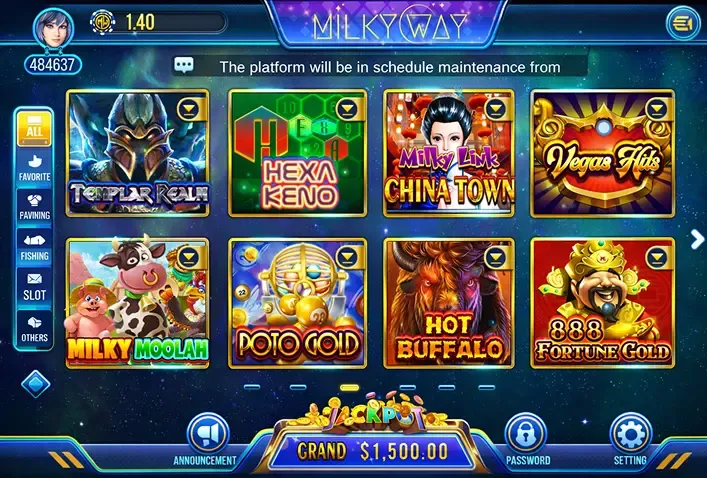
Milky Way 777 is a sweepstakes-style online gaming platform. Players use virtual credits rather than direct cash wagers, which puts it in a legal category separate from traditional online casinos. The game library includes fish table games, slot-style titles, and arcade games. The fish table selection in particular has built a strong following among players who take this genre seriously.
The platform is available on both iOS and Android, and there is also a browser-based version that works on desktop and laptop. Most players use the mobile app because the experience is better optimized for it, but the browser version is a legitimate option if a phone is not available or preferred.
Sweepstakes gaming operates differently from direct gambling. Understanding that distinction matters because it affects how credits are loaded, how winnings work, and what the platform can and cannot offer in different regions. Doing a bit of reading on this if it is unfamiliar territory.
Before Downloading Anything
A few things to sort out before touching the app.
- Make sure the device is compatible. Milky Way 777 runs well on iPhone models from the iPhone 8 onward. Anything older than that may work, but performance is not guaranteed, and some features may be limited. On Android, devices running Android 8.0 or higher are the safe zone. Older Android versions can run into compatibility issues that are frustrating to troubleshoot
- Get a stable internet connection sorted. This platform is fully online. There is no offline mode, no cached gameplay, nothing. A weak or inconsistent connection will cause games to stutter, sessions to drop, and occasionally trigger errors during login that look like account problems but are actually just connectivity issues. Home Wi-Fi is the most reliable. Mobile data works, but anything less than 4G will cause noticeable issues in the more graphically demanding fish table games.
- Have an email address ready. The signup process requires a valid email for verification. Using a throwaway or rarely checked email creates problems later, particularly during password resets or account recovery. Use something that is actually checked regularly.
- Know the region's situation. Milky Way 777 is not available everywhere. Availability varies by country and in some cases by state or province. If the platform is not accessible in a particular region, a VPN might seem like a solution, but using one can create account issues and potentially lead to suspension. Better to confirm availability before investing time in the setup.
Downloading the App
This is where a lot of players hit their first snag, so paying attention here saves frustration later.
Milky Way 777 is not always listed in the App Store or Google Play under a simple search. The category of app it belongs to has historically had a complicated relationship with major app stores, which means the download process sometimes goes through the official website rather than a store listing.
For iOS users:
Open Safari on the iPhone and navigate to the official Milky Way 777 website. The exact URL matters here. There are copycat sites and unofficial versions floating around online that look similar but are not the real platform. Always confirm the URL matches the official domain before downloading anything.
Once on the official site, look for a download button or a link labeled something like "Play on iOS" or "Download for iPhone." Tapping this will either redirect to the App Store if a listing is currently active or it will initiate a direct download of the app file.
If it is a direct download, iOS will pause and show a prompt about an unrecognized developer. This is normal. After the download completes, go to Settings, then General, then VPN and Device Management. The developer's name will appear there. Tap it and select Trust. After doing that, the app will open normally.
Some iOS users also run into a situation where the app downloads but shows a gray icon that cannot be opened. This is almost always fixed by going back to the VPN and Device Management screen and confirming the trust setting was saved properly.
For Android users:
The process is similar. Go to the official site, find the Android download link, and tap it. Android will likely show a warning about installing apps from unknown sources. Go to Settings, find the security or privacy section, and enable installation from unknown sources for the browser being used. After that, tap the downloaded file and follow the install prompts.
Once installed, the app will appear in the app drawer like any other installed application.
For desktop or browser play:
Navigate to the official Milky Way 777 site on a desktop browser. Most of the functionality is available without downloading anything. Create an account, log in, and games can be accessed directly through the browser. Chrome and Firefox work best. Safari on Mac works but can occasionally have issues with certain game features.
Creating an Account
The signup process is fairly simple once the platform is actually accessible. Here is what to expect.
Open the app or navigate to the site. On the main screen, there will be options to log in or register. Tap or click Register.
The registration form will ask for:
A username. Pick something that is easy to remember and not something used on other platforms. Usernames are often visible to other players in multiplayer game modes.
An email address. As mentioned earlier, use a real one that gets checked. The verification email needs to be confirmed before the account is fully active.
A password. Use something with a mix of letters, numbers, and at least one special character. Milky Way 777 accounts have been targeted by credential stuffing attacks in the past, which happens when hackers use leaked passwords from other sites to try logging into gaming accounts. A unique password that is not reused from anywhere else is genuinely important here, not just standard advice.
A phone number, in some cases. Not all versions of the registration form ask for this, but some do. It is used for account recovery and two-factor verification.
After submitting the form, check your email inbox for a verification message. Open it and click the confirmation link. The link usually expires within 24 hours, so do not leave it sitting for days.
Once the email is confirmed, the account is active, and login is possible.
Logging In for the First Time
Open the app or site and tap Login. Enter the email address and password used during registration.
A couple of things to watch for right away:
Autocorrect on mobile keyboards has a habit of capitalizing the first letter of whatever gets typed into a text field. Passwords on Milky Way 777 are case-sensitive. If the password starts with a lowercase letter and autocorrect changes it to uppercase, the login will fail even though the password is technically correct. Before tapping the login button, tap the eye icon on the password field and visually confirm what is actually there.
The same goes for the email address. Some keyboards will autocorrect email addresses in unexpected ways, particularly the domain portion. Double-check before submitting.
If the login goes through, the main lobby or dashboard will load. That is the base of operations for everything on the platform.
If the login fails even though the credentials seem correct, jump to the troubleshooting section further down in this guide.
Setting Up the Account Properly
Getting logged in is step one. Getting the account set up properly is step two, and most players skip this part and then run into problems later.
- Add a profile photo or avatar. This sounds minor, but in multiplayer fish table games, having a recognizable profile makes the experience feel more grounded and less anonymous.
- Enable two-factor authentication. Go to account settings and look for a security section. Enabling 2FA adds a second verification step at login, usually a code sent via SMS or generated by an authenticator app. It is a small inconvenience at login time that prevents a much larger inconvenience if the account ever gets compromised.
- Set up a recovery email or backup phone number. Separate from the main contact details used during signup, some accounts allow a recovery option as a fallback. If the primary email gets locked or hacked, having a recovery path saves a lot of grief.
- Review the notification settings. The app will default to sending a range of notifications about bonuses, events, and promotions. Some of these are useful. Others are just noise. Spend two minutes going through the notification preferences and turning off anything that is not relevant.
- Understand the credit system before loading anything. Milky Way 777 uses virtual credits that are purchased through the platform. The rates, minimums, and accepted payment methods vary. Before adding any credits, read through the platform's credit FAQ or terms section so there are no surprises about how deposits work or how redemptions are processed.
Finding Your Way Around
The main interface has a few key areas worth knowing.
- The Lobby. This is the main screen showing all available games. Games are usually organized by category: fish tables, slots, and arcade. There is often a featured or recommended section at the top showing currently popular or newly added titles.
- The Wallet. This is where credits are managed. Loading credits, checking balance, and initiating redemptions all happen here. Keep an eye on this section because credits loaded during promotional periods sometimes have different terms than standard credits.
- Account Settings. Profile information, security settings, notification preferences, and contact details all live here. Worth revisiting periodically, especially after major app updates that sometimes reset certain preferences.
- Support or Help Section. Most versions of the Milky Way 777 app have a built-in support channel, usually a chat function or a link to a support email. Bookmark this mentally. Knowing where to find it before a problem occurs means less time scrambling when something does go wrong.
Common Problems and How to Deal With Them
Login fails even with correct credentials.
The first thing to try is resetting the password through the Forgot Password link on the login screen. Even if the password seems correct, sometimes accounts get into a state where the stored credentials do not match what the user remembers. A fresh reset resolves this more often than expected.
If the reset email does not arrive, check the spam and promotions folders. Also, check that the email address being used actually matches the one registered with the account. It is surprisingly common to have signed up with a slightly different email variation and not remember which one.
If none of that works, contact support directly with as much account information as possible. Name, username, approximate signup date, and any transaction history help them locate and verify the account.
The app crashes on startup.
Close the app completely and reopen it. On an iPhone, swipe up from the bottom of the screen to bring up the app switcher, then swipe the Milky Way app upward to close it. Reopen from the home screen.
If it keeps crashing, delete and reinstall. Account data is stored on the platform's servers so nothing is lost by reinstalling the app. This step fixes a significant percentage of persistent crash issues.
Also check for an available update in the App Store or Google Play. Running an outdated version of the app is one of the most common causes of repeated crashes.
Games load but freeze or lag during play.
Almost always a connection issue. Switch from mobile data to Wi-Fi or vice versa and see if the problem follows the connection. If it does, the issue is with that network specifically. If it resolves on one connection but not the other, stick with the one that works.
Also, close any background apps that might be competing for bandwidth, particularly streaming apps or anything that downloads content automatically.
Credits loaded but not showing in the account.
Wait a few minutes. Credit processing is not always instant and brief delays are normal, particularly during high-traffic periods. If credits have not appeared after 15 to 20 minutes, take a screenshot of the payment confirmation and contact support with that documentation. Never load credits again to try to fix a missing credit situation without getting the first transaction sorted first.
The verification email never arrived.
Check spam. Check the promotions tab. Search the inbox for the platform name directly in case the email got filed somewhere unexpected.
If it is genuinely not there after five minutes, use the resend verification option on the registration confirmation screen. If that is not available, try registering again with the same email. Some platforms treat this as a re-trigger for the verification email rather than creating a duplicate account
Tips Worth Knowing Before Getting Seriously Into the Platform
Start with smaller credit amounts until the platform feels familiar. Understanding how the credit system behaves, how games pay out, and how redemptions work takes a bit of time. Getting a feel for the platform on smaller amounts first is sensible.
The fish table games on Milky Way 777 have a skill component that is easy to underestimate early on. Targeting strategy, shot timing, and credit management all affect outcomes more than players new to the genre expect. Watching experienced players before jumping into higher-stakes sessions is time well spent.
Keep an eye on the promotions section. Milky Way 777 runs bonus events and credit promotions periodically. Players who are paying attention can get significantly more value out of these windows than those who miss them. The promotions are usually time-limited and do not get announced far in advance.
Avoid sharing login credentials with anyone. Not friends, not family, not other players in the community. Account sharing creates accountability problems, and if anything goes wrong with an account that has been shared, untangling what happened is a nightmare. Keep the login information private.
Log out after every session on any shared device. If the account is ever accessed from a phone or computer that other people use, logging out manually is important. The platform stays logged in by default and does not automatically log out between sessions.
Final Thoughts
Milky Way 777 is a platform worth putting time into if fish table games or sweepstakes-style gaming are appealing. The setup has a few rough spots, mostly around downloading the app and the initial account verification, but once those are out of the way, the platform itself is solid.
The keys to a good experience are not complicated. Download from the official source only. Use a real email address. Set up 2FA before loading any credits. Understand the credit system before spending anything. And know where the support section lives before something goes wrong.
That covers the full setup. Everything from device compatibility through login, account configuration, and the issues most likely to come up in the first few weeks of using the platform. The rest is just playing.
Purchase Securely With